Backoffice
Follow each change to its purges, purge by hand, and manage purge targets from Umbraco.
Administrators find the package under Settings > Advanced > Cache tags, with three tabs: Changes, Purge and Targets. Every document and media item also gets a Cache box on its Info tab.
Changes
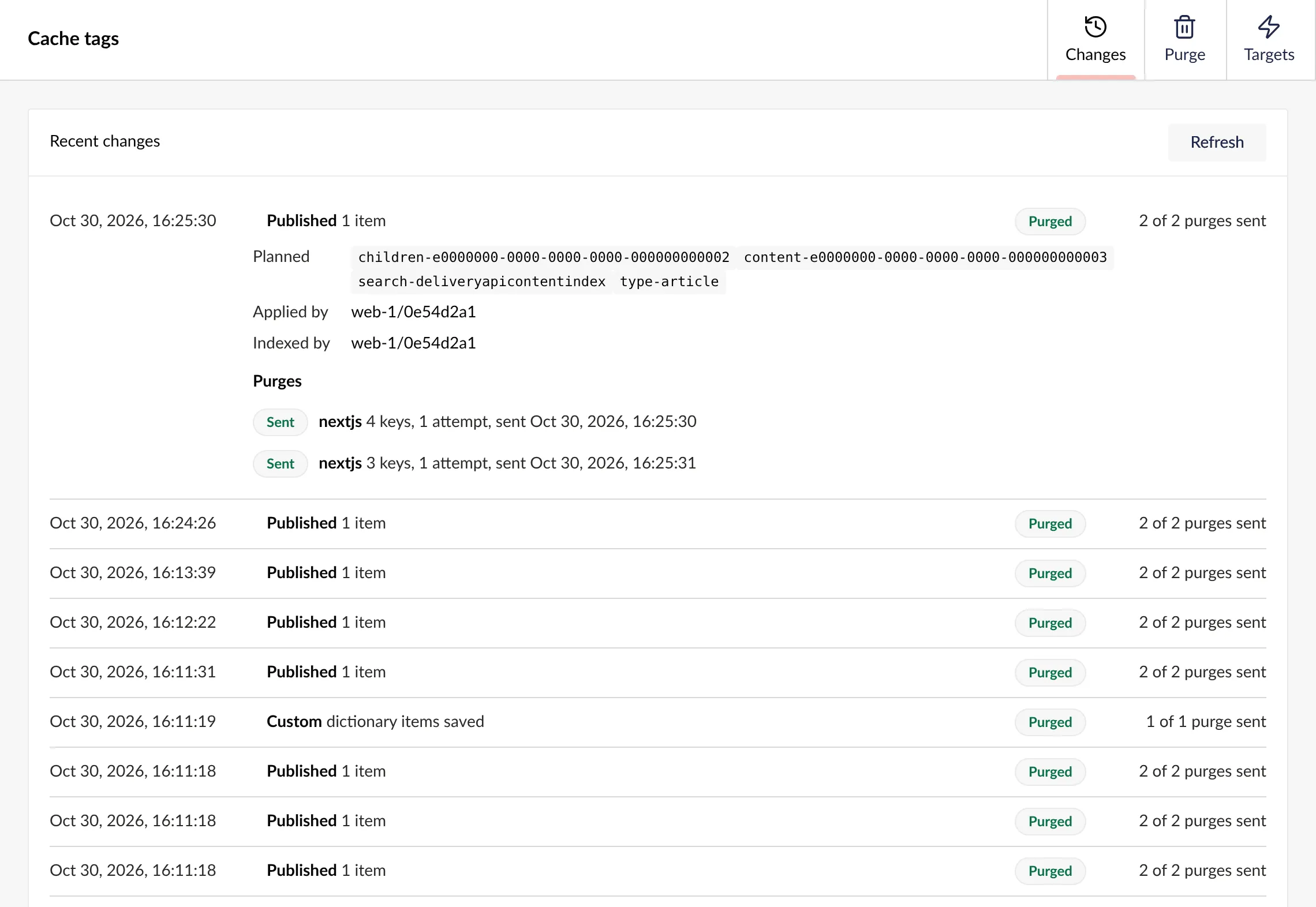
Changes lists the latest changes, newest first. Open one to see the keys it planned, which servers applied it and have it in their index, and each purge with its attempts and any error.
| Status | Means |
|---|---|
| Waiting for servers | A server has not applied the change yet. |
| Waiting for index | Every server has applied it, but a server’s index has not caught up. |
| Purged | Its purges are queued or sent. |
The view refreshes itself until the change is purged. How a purge is timed explains each stage.
Purge
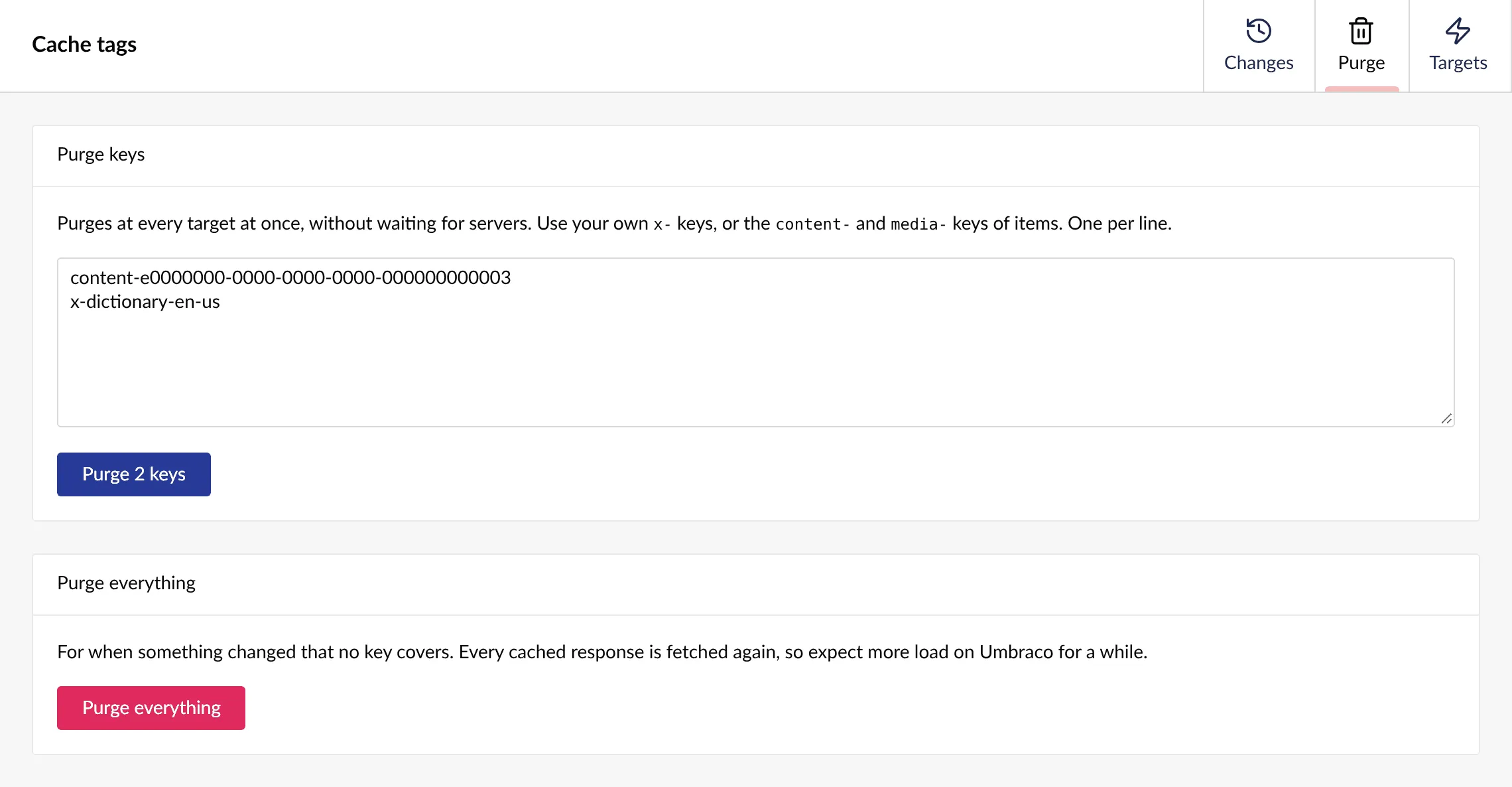
Purge keys by hand, one per line. You can purge your own x- keys, items’ content- and media- keys, and umbraco for everything. Purging an item’s key purges its type’s listings too, so a long listing that shows the item is reached.
Targets
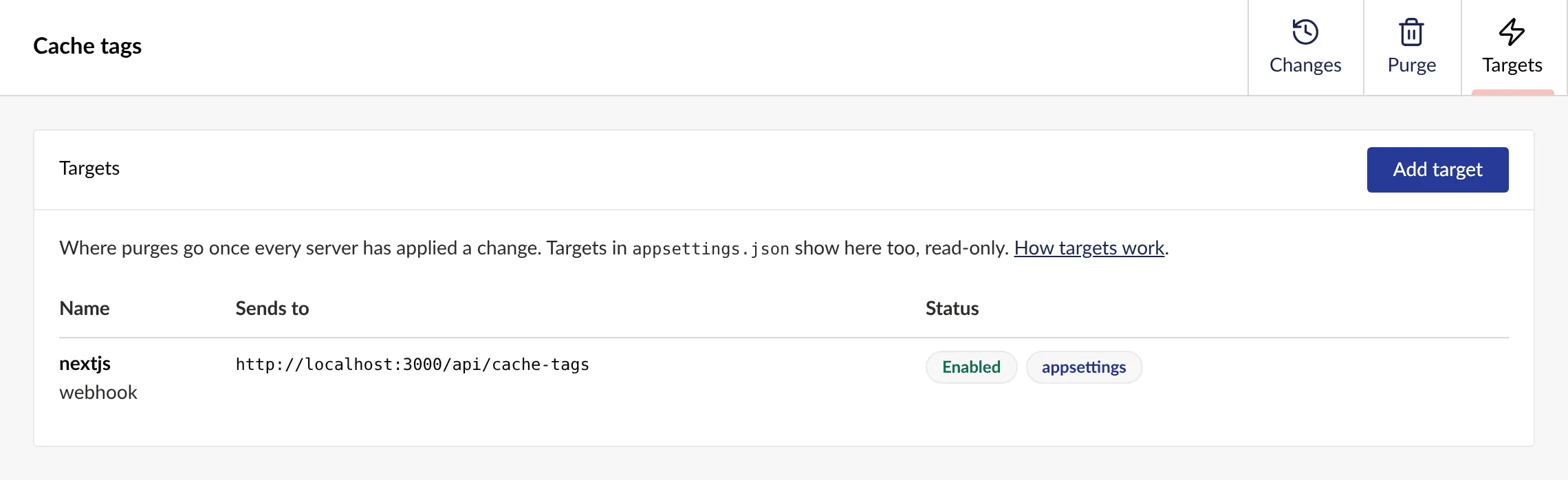
The tab lists every target, those from appsettings.json too, read-only. Add target opens the form below. Edit, test, disable or remove a target you added here at any time.
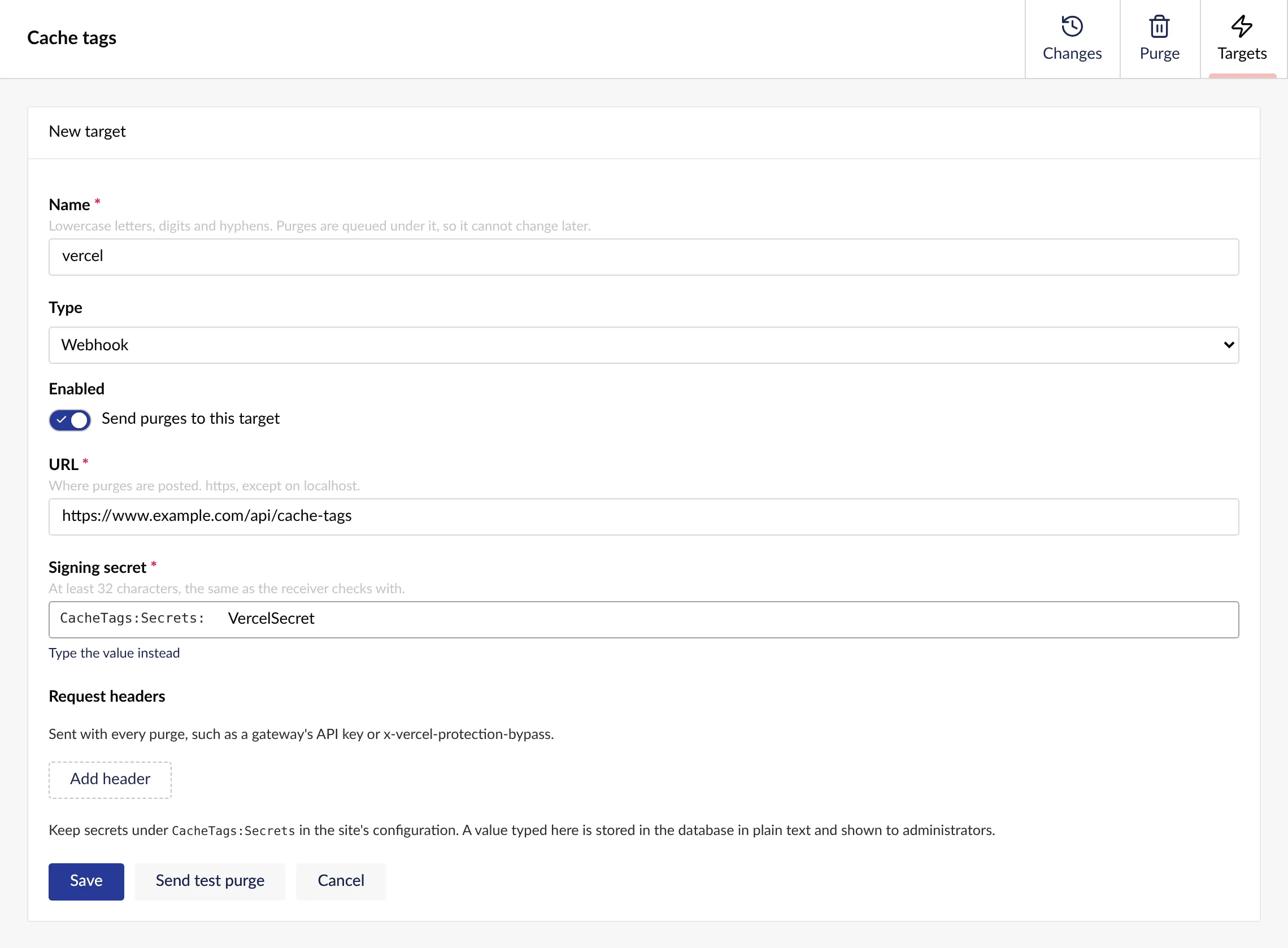
Send test purge checks the target answers before you save. Keep secrets under CacheTags:Secrets in the site’s configuration rather than typing them in. See Purge targets.
The Info tab
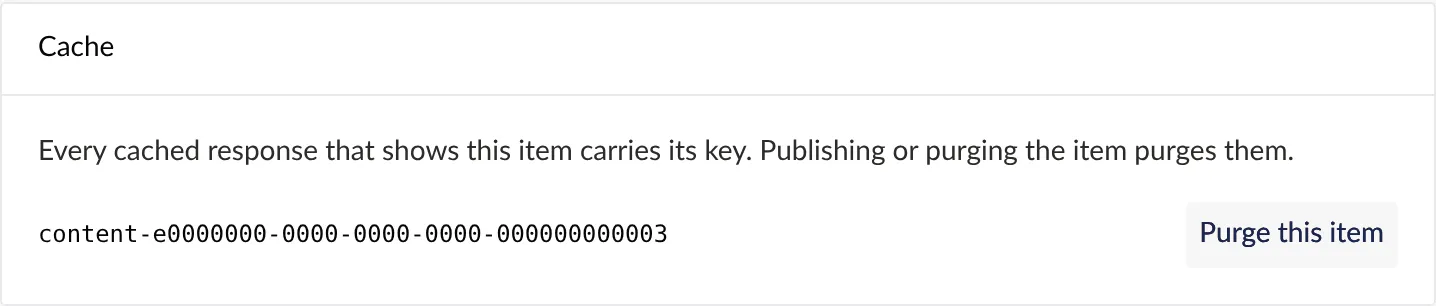
A document’s or media item’s Info tab has a Cache box with the item’s key and Purge this item. Every cached response that shows the item carries that key, so publishing or purging the item reaches each of them.